Connect the MCP server to Gemini Enterprise
Goveda Pro exposes its examination workflow as an MCP server, so people in your organization can drive it conversationally from Gemini Enterprise — create and open projects, upload an application, run prior art search, and review results, all in chat.
Unlike Claude and ChatGPT, where each person adds the connection themselves, Gemini Enterprise connects through a custom MCP server data store that a Google Cloud administrator sets up once for the whole app.
Before you start — you'll need:
- A Gemini Enterprise app in your Google Cloud project, and an administrator
with the Discovery Engine Editor role (
roles/discoveryengine.editor). - The client secret for Goveda Pro. Ask your Goveda Pro contact for it; it is issued to your organization and is not published here.
- A Goveda Pro account for each person who will use the connection (the same account they use for the web app).
The server URL is https://gp-mcp.goveda.com/mcp.
Allow custom MCP data stores
Gemini Enterprise blocks custom MCP data stores by default with an organization
policy. An Organization Policy Administrator (roles/orgpolicy.policyAdmin)
turns it off for the project that hosts your app:
- In the Google Cloud console, open IAM & Admin → Organization Policies and select your Gemini Enterprise project (not the organization).
- Find Disable custom MCP server connector for Gemini Enterprise and choose Manage policy → Override parent's policy.
- Add a rule with Enforcement set to Off, save, and confirm the status shows Not enforced.
If your organization restricts outbound connections with VPC Service Controls,
also add gp-mcp.goveda.com to discoveryengine.managed.allowedEgressFqdns
and custom_mcp to discoveryengine.managed.allowedDataSources.
Add Goveda Pro as a data store
Create the data store from your app
In the Google Cloud console, open Gemini Enterprise → Apps, select your app, and go to Connected data stores → New data store. Search for Custom MCP and click Add MCP server on the Custom MCP Server card.
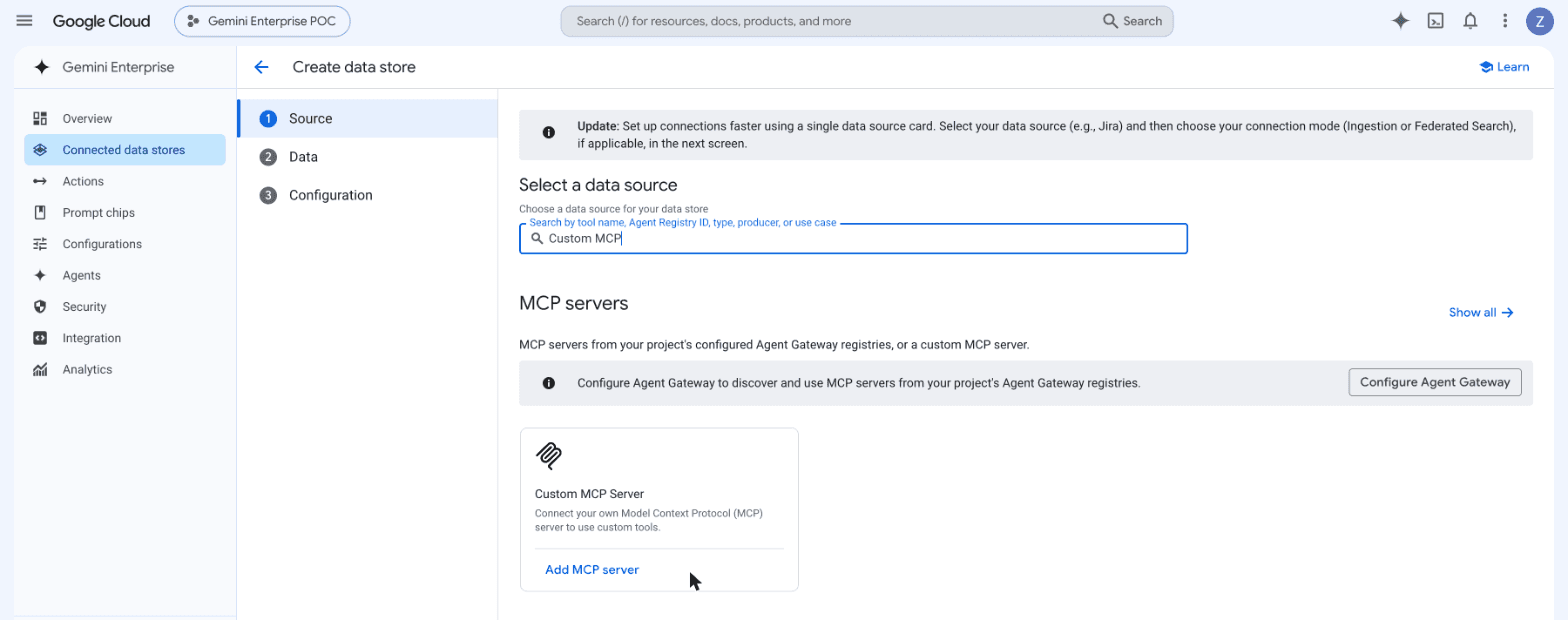
Enter the Goveda Pro details
Under Authentication settings, keep OAuth 2.0 selected and fill in the form:
| Field | Value |
|---|---|
| MCP Server URL | https://gp-mcp.goveda.com/mcp |
| Authorization URL | https://gp-mcp.goveda.com/authorize |
| Authorization URL Parameters | Leave empty |
| Token URL | https://gp-mcp.goveda.com/token |
| Client ID | goveda-gemini-enterprise |
| Client Secret | The client secret your Goveda Pro contact gave you |
| Scopes | openid profile email offline_access |
| Enable PKCE Support | Checked |
| Use HTTP Basic Authentication | Unchecked |
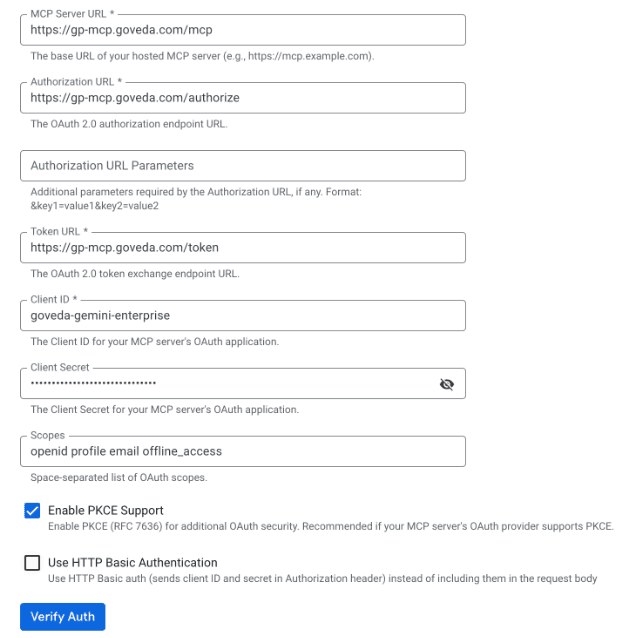
The form checks Use HTTP Basic Authentication by default — uncheck it.
With it checked, or with a missing or mistyped client secret, sign-in
completes but the connection is refused. Include offline_access in
Scopes so the connection stays signed in after the first access token
expires.
Verify the connection
Click Verify Auth. A window opens to sign in to Goveda Pro — authenticate with your Goveda Pro account. When the form shows Successfully logged in., click Continue.
Describe and create
Under Advanced options, enter a short MCP Server Description — for
example, Goveda Pro patent examination tools: projects, application documents,
prior art search results, Lack of Unity analysis, patent full text and
citations. Gemini uses it to decide when to call Goveda Pro. Click
Continue, give the data connector a name such as Goveda Pro, and click
Create.
Enable the actions
Gemini Enterprise turns every action off by default. Open the new data store's Actions tab, click Reload custom actions if the list is empty, select the tools your examiners should use, and click Enable actions. You can enable up to 100 actions; Goveda Pro has about 50.
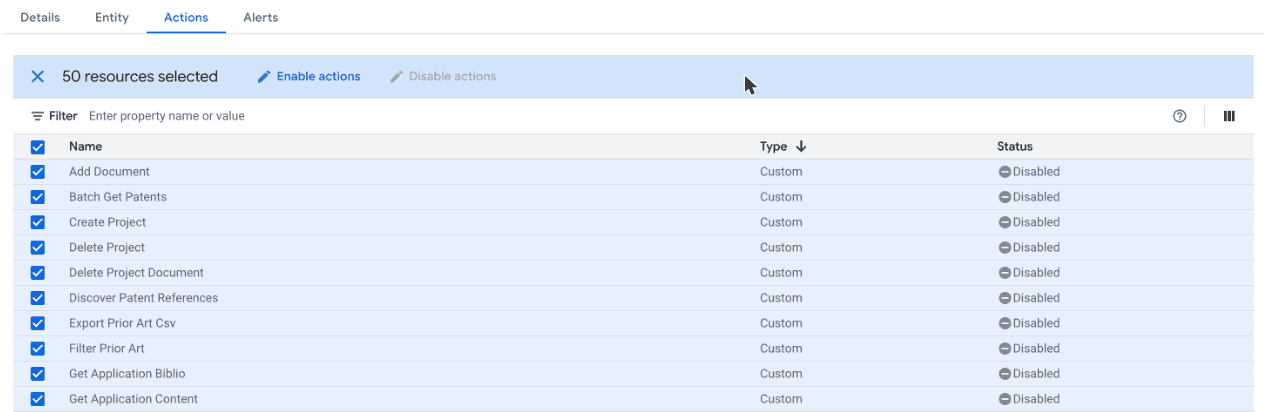
Read-only tools run without a prompt. Tools that change or delete data, such as Delete Project, ask for confirmation in Gemini first.
Signing in
Gemini Enterprise calls Goveda Pro on behalf of each person, using their own Goveda Pro sign-in — the administrator's Verify Auth only checks the connection.
- The organization comes from the sign-in. Tools act in the Goveda Pro organization the person signed in to, with the same permissions they have in the web app.
- Single sign-on works as usual. If your organization signs in through its own identity provider — Microsoft Entra ID, Okta, or similar — entering a work email sends people to it, exactly like the web app. See Single sign-on.
- If sign-in is refused, ask your organization's Owner to check the person's access under Settings → Organization.
Keep the client secret confidential and store it only in the Gemini Enterprise data store. It identifies your organization's Gemini Enterprise app to Goveda Pro. If it may have been exposed, contact Goveda Pro to issue a new one, then update the data store with Re-authenticate.
What you can do
Once connected, people can run the examination workflow from Gemini:
- Create and open projects
- Upload an application and read it — bibliographic data, full text, and the AI summary
- Search and read the reference PDFs in a Project's Knowledge Base
- Run prior art search and inspect the results, plus the system's recommended prior art
- Review the Lack of Unity analysis and export prior art to CSV
For the full workflow, see How it works. For the exact tools available, see the Tool reference. Using Claude or ChatGPT instead? See Connect to Claude or Connect to ChatGPT.